

In a nutshell:
- An HTTP 500 error isn’t just a minor issue—it makes your website invisible to both Google and users.
- The causes range from plugin conflicts to PHP timeouts to server misconfiguration.
- We’ll show you how to systematically narrow down HTTP 500 errors and which tools can speed up the diagnosis.
Do you know that feeling when your website suddenly becomes inaccessible and displays only a cryptic error message? Welcome to the HTTP 500 error club! This Internal Server Error can drive any website owner to despair. But don’t panic—we’re here to help.
In this article, you’ll learn:
- What an HTTP 500 error actually is.
- Why this error occurs and how it differs from other HTTP errors.
- What causes an internal server error.
- How the error affects the user experience and what consequences it has for your SEO ranking.
- Practical solutions to fix the error quickly.
Whether you run a WordPress site or manage a Shopify store, we have the answers to your questions. Get ready to fix your next HTTP 500 error with ease!
What is the HTTP 500 error?
HTTP status code 500, also known as an Internal Server Error, is a generic error message that occurs when the server encounters an unexpected problem and cannot return a more specific error message. Simply put, the server doesn’t know exactly what went wrong.
Here are some differences from other common HTTP errors:
- HTTP 404 – Not Found: This error occurs when the server cannot find the requested resource. This is often because the URL was entered incorrectly or the page has been deleted.
- HTTP 403 – Forbidden: With this error, the user does not have permission to access the requested resource. This can be caused by missing access rights or incorrect file permissions.
- HTTP 502 – Bad Gateway: A Bad Gateway error means that a server acting as a gateway or proxy receives an invalid response from the upstream server.
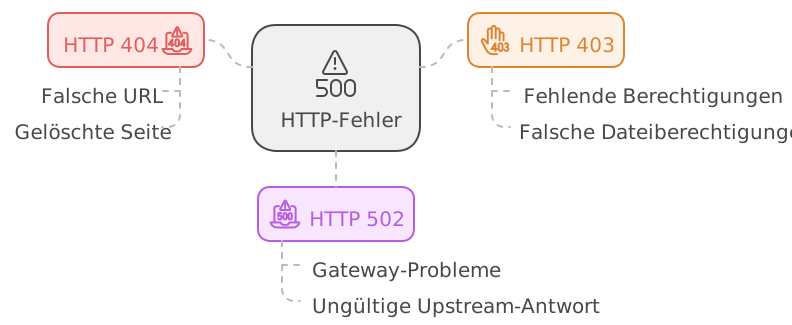
An HTTP 500 error is often harder to diagnose because it provides less information about why the error occurred. This makes it particularly frustrating for website owners and administrators.
Causes of the HTTP 500 Error
An HTTP 500 error can be caused by various issues. These errors are often difficult to diagnose because they indicate a general problem with server communication without providing specific details.
Server issues
Internal server communication issues are among the most common causes. If the server isn’t functioning properly or is overloaded, this can lead to an internal server error. For example:
- Server overload: Too many simultaneous requests can overwhelm the server.
- Server maintenance: Temporary outages may occur during maintenance work.
Invalid .htaccess file
The .htaccessfile is a configuration file used by the Apache web server. Typical issues with this file include:
- Syntax errors: A missing character or a typo can cause the server to stop working properly.
- Incorrect permissions: If the file or its directories do not have the correct permissions, this can also cause problems.
Incompatible PHP versions and script errors
PHP is a widely used scripting language found on many websites. Common causes of HTTP 500 errors in this context include:
- Outdated PHP versions: An old version of PHP may be incompatible with current scripts.
- Programming errors: Invalid or faulty scripts can cause the entire server to crash.
WordPress-specific issues
WordPress websites are particularly prone to internal server errors due to conflicts between plugins and themes:
- Plugin conflicts: A single faulty plugin can cripple the entire website.
- Incompatible themes: Themes can also cause problems, especially if they aren’t updated regularly.
With this information in mind, it becomes clear that the HTTP 500 error can have many different causes. Whether it’s due to a simple syntax error in the .htaccessfile or more complex issues like incompatible PHP versions—it’s important to proceed systematically and check every possible cause.
Impact of the HTTP 500 Error on the User Experience
An HTTP 500 error can significantly impair the user experience. Imagine you want to visit a website, but instead of the desired content, you only see an error message. This is frustrating and often causes users to leave the site.
Overview of negative effects:
- Increased bounce rate: Users who encounter an HTTP 500 error usually leave the page immediately. This increases the bounce rate and signals to search engines that the site is unreliable.
- SEO rankings: Search engines like Google rank websites with frequent server errors lower. An HTTP 500 error can therefore lead to a lower ranking in search results, resulting in less organic traffic.
- Loss of revenue: For e-commerce websites, every moment the site is down represents a potential loss of revenue. Customers cannot complete their purchases and may switch to competitors.
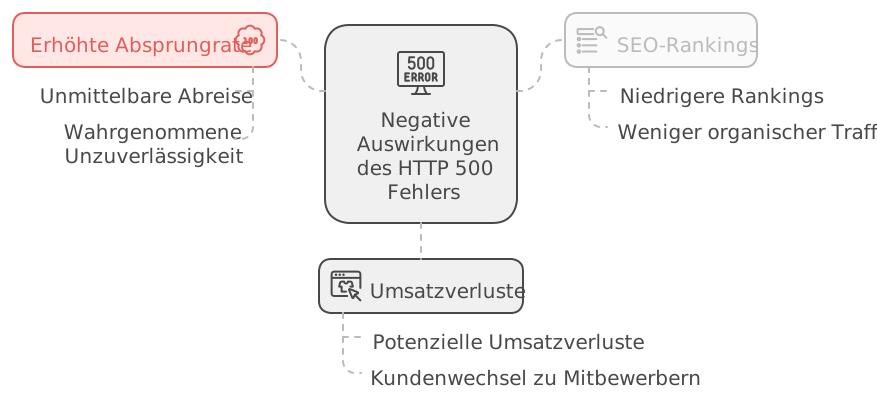
Resolving such issues is essential for a website’s success.
Solutions for the HTTP 500 error
When the HTTP 500 error strikes, there are several approaches to solving the problem. Here are the most important solutions:
- Check the .htaccess file: This file is often the cause of the error. Syntax errors or incorrect instructions can confuse the server. Taking a close look at the .htaccess file and correcting it can work wonders.
- Check scripts and adjust PHP settings: Faulty scripts or incompatible PHP versions often lead to an HTTP 500 error. Check your scripts for errors and make sure your PHP version is compatible with your software.
- Clear the cache and test different browsers: Sometimes the problem lies with the browser cache. Clear the cache and try using a different browser or network.
- Request technical support for HTTP 500 errors: If all else fails, it’s time to seek help from an experienced technician. Make sure to provide all relevant information to facilitate a quick resolution.
No one wants a website that doesn’t work. With these solutions, you can fix the HTTP 500 error and get your website up and running again.
Specific Solutions for WordPress
WordPress websites are particularly prone to the HTTP 500 error. Here are some targeted solutions to fix the problem:
Enable WordPress Debug Mode
Enable WordPress debug mode to receive detailed error messages. Add the following line to the wp-config.php :
php define('WP_DEBUG', true);
Disable WordPress plugins
Conflicts between plugins can cause errors. Deactivate all plugins and check if the error disappears. If you don’t have access to WP-Admin, deactivate the plugins via FTP:
- Connect to your server via FTP.
- Navigate to
/wp-content/. - Rename the folder
plugins, e.g., toplugins_deaktiviert.
Emergency deactivation of WordPress plugins
If the admin area is inaccessible, you can also deactivate plugins directly in the database:
- Open phpMyAdmin.
- Select your database.
- Edit the table
wp_options. - Search for the entry
active_pluginsand set it toa:0:{}.
Change WordPress Theme
A faulty theme can also cause problems. Change the theme via WP-Admin or via FTP:
- Via WP-Admin: Go to Appearance > Themes and activate a default theme such as Twenty Twenty-One.
- Via FTP: Navigate to
/wp-content/themes/, rename the current theme folder, and the default theme will be activated automatically.
Create a staging copy for the theme change
To ensure that a theme change occurs without website downtime, create a staging copy of your website and test the change there.
These steps should help identify and resolve common causes of the HTTP 500 error on WordPress websites.
Specific solutions for Shopify
1. Check the .htaccess file
A common issue that can lead to an HTTP 500 error is a faulty .htaccess file. This file contains instructions for the server, and a single syntax error can cause the entire website to stop working. Here is a step-by-step guide to checking and correcting the .htaccess file:
- Connect to your server: Use an FTP client like FileZilla or a file manager in your hosting panel to access your files.
- Navigate to your website’s root directory: Locate the .htaccess file in the main directory of your Shopify installation.
- Back up the file: Download a copy of the .htaccess file to your local computer before making any changes.
- Open and review the file: Open the .htaccess file with a text editor (such as Notepad++ or Sublime Text) and look for any syntax errors or incomplete instructions.
- Correct any errors: Common errors include missing slashes in
<ifmodule></ifmodule>-tags or incorrect redirects. - Save and upload: After making corrections, save the file and upload it back to the server.
A typical example of an error might look like this: apache RewriteEngine On RewriteRule ^index.php$ – [L] RewriteCond %{REQUEST_FILENAME} !-f RewriteCond %{REQUEST_FILENAME} !-d RewriteRule . /index.php [L]
Make sure all tags are closed correctly and there are no typos.
2. Script Check and Adjustment of PHP Settings
Sometimes, faulty scripts or incompatible PHP settings can lead to an HTTP 500 error:
- Identify faulty scripts: Check your website error logs to determine which script is causing issues.
- Adjust PHP settings: If necessary, change the PHP version or adjust the memory limits.
3. Clear the cache and check your browser
Another simple troubleshooting step:
- Clear your browser cache: Clear your browser’s cache to ensure the error isn’t caused by cached data.
- Test alternative networks/browsers: Try accessing your website via a different network or browser.
4. Request technical support (if all else fails)
If none of the above solutions work:
- Contact Shopify Support: Reach out to Shopify Support through your Shopify account.
- Use the Shopify Community Forums: Post your question in the Shopify Community Forums to get help from other users.
These steps should help you diagnose and resolve the HTTP 500 error.
2. Script Check and PHP Settings Adjustment
Faulty scripts can often lead to an HTTP 500 error. Wondering how to identify and fix them? No problem—here are a few steps that can help:
1. Review error logs
Check your server’s error logs. You can usually find these in the hosting panel or via FTP in a directory like /var/log/. Look for entries that indicate problems with specific scripts.
2. Find faulty lines of code
Open the affected scripts and look for syntax errors or incorrect functions. Tools like PHP CodeSniffer can be helpful here.
3. Adjust PHP settings
Sometimes the problem isn’t with the script itself, but with the PHP settings. Here are some important points:
- Increase the PHP memory limit: In the
php.inifile, you can increase the memory limit (memory_limit = 256M). - Increase the maximum execution time: Set
max_execution_timeto a higher value, e.g.,300, to ensure that long-running scripts are not terminated.
4. Shopify-specific steps
- Check Shopify server status: Visit Shopify Status for the latest information.
- Contact Shopify Support: If you encounter any issues, contact Shopify Support directly.
- Use community forums: You can often find quick help from other users in the Shopify Community Forums.
5. Check file and folder permissions
Make sure permissions are set correctly (files: 644, folders: 755). Incorrect permissions can also lead to an HTTP 500 error.
By following these steps, you should be able to identify faulty scripts and make the necessary adjustments.
3. Clear the cache and check the browser
A simple but often overlooked step to fix the HTTP 500 error is to clear your browser cache. Why is this so important? The cache stores temporary data to load web pages faster. However, sometimes this stored data can be outdated or corrupted, which can lead to errors like the HTTP 500.
Here’s how to clear your browser cache:
- Google Chrome:
- Click the three dots in the top-right corner.
- Go to Settings > Privacy and Security > Clear browsing data.
- Select “All time” and click “Clear data.”
- Mozilla Firefox:
- Click on the three lines in the top right corner.
- Go to Options > Privacy & Security > Cookies and Site Data > Manage Data.
- Click "Clear Now."
- Safari:
- Open the Safari menu.
- Go to Preferences > Privacy > Remove All Website Data.
- Confirm by clicking “Remove Now.”
Another option is to try different networks or browsers. The problem might not be with your website, but with your current network or browser:
- Switch networks: Connect to a different Wi-Fi network or use mobile data.
- Switch browsers: If you usually use Chrome, try Firefox or Safari.
If the error persists, it might be helpful to check the error logs. In particular, check the .htaccessfile for possible .htaccess-Syntaxfehler and correct file and folder permissions.
If all else fails, we recommend checking the Shopify Server Status or contacting Shopify Support. You can also often find helpful tips from other users in the Shopify Community forums.
Troubleshooting sometimes requires patience, but these steps will help you get your website up and running again.
4. Request technical support (if all else fails)
Sometimes nothing helps: clearing the cache, checking the .htaccess file, or adjusting the PHP settings. Then it’s time to request technical support. But when exactly?
When should you request technical support?
- If the HTTP 500 error persists after you’ve tried everything yourself.
- If the causes seem too complex to resolve on your own.
- In the case of repeated or frequent errors.
What information should be provided?
- Error logs: These often contain important clues about the source of the problem.
- .htaccess syntax errors: Note down all changes and errors in the file.
- File and folder permissions: Incorrect permissions can affect server status.
- Check Shopify server status: Check if there are any general server issues with Shopify.
What is the best course of action?
- Contact Shopify Support and make sure you have all the information listed above ready.
- Use the Shopify Community Forums to potentially get quick help from other users.
- Keep an eye on Shopify status updates to stay informed about any server issues.
With these steps and the right information, you’ll be well-prepared to work with a technician to resolve the issue and get your website back up and running!