

TL;DR
- How you set up WordPress will determine its security, performance, and maintainability for years to come.
- It’s more than just installing a theme and getting started.
- We’ll walk you through the setup steps in the right order.
- Benefit: a solid foundation for your SME web project right from the start.
In a nutshell:
- Setting up WordPress sounds like “install a theme and get started”—but in reality, the setup phase determines security, performance, and maintainability for years to come.
- We’ll show you the steps you absolutely must follow in the correct order when setting up a new WordPress installation.
You want to set up a website and have decided on WordPress. And now you’re probably wondering how to go about setting up WordPress. To help you stay on track, we’ve summarized everything you need to know in our step-by-step WordPress guide.
WordPress Introduction: What Matters When Setting Up WordPress
To set up WordPress, you’ll need a few components. These are:
- A web host: This provider gives you storage space. Think of the web host as a landlord who provides living space.
- A domain: This is the name of your website that appears in the browser. For example, waterproof.agency. By the way, you order the domain from your hosting provider.
- A database: This is where you store your website’s content and settings. Your hosting provider also provides a MySQL database.
- FTP access to the server: This is important so you can upload files. You’ll receive the login credentials—as you might expect—from your hosting provider.
- The WordPress files.
By the way: TYPO3 can be an alternative to WordPress. Learn more here.
Step 1: Web Hosting
To install WordPress, you need a hosting package that includes a server and a domain. You can choose one of these hosting providers, for example: All-Inkl, Webgo, Strato, Ionos, dogado, HostEurope, DomainFactory, or Alfahosting.
Note: As a new customer, you’ll receive discounts on many of the hosting providers’ plans. It also pays off to pay the full amount annually and receive a discount. The mandatory SSL certificate, which marks a website as secure, is often included for free in the plans.
Step 2: The Domain
Every server has a numerical code that is unique. In technical terms, this is called an “IP address.” With this address, the browser can locate and access your website. We users don’t see this numerical code—and here’s why: It’s hard for us to remember sequences of numbers like 90.174.236.34.
That’s why, to access a website, we use a method based on the alphabet: the domain. A domain is a unique identifier for a section of the internet, such as your website. Here’s what our domain looks like: waterproof.agency
By the way: If you’ve just ordered your domain, it usually isn’t immediately accessible via the browser, and you’ll initially see a frustrating error message like “Website not available.”
No need to worry. In fact, it can take up to 24 hours for the changes to the DNS settings to take effect. These settings, by the way, tell the browser where to find the domain’s content.
Step 3: The SSL Certificate
The SSL certificate ensures the confidentiality of interactions on your website. For users, it’s a sign that they can trust your website—and therefore you. When you request an SSL certificate from your host, your company information is verified.
This makes it harder for hackers, phishers, and data thieves—and that applies not only to large websites. Because whether small or large, criminals are after the data. There’s a rule of thumb here:
If your website collects sensitive data such as comments including email addresses or personal information during orders, the connection must be encrypted. This means you are legally required to obtain an SSL certificate.
By the way, you can recognize a website with an SSL certificate from the outside by the padlock icon before the “https” and the “s” in “https.” Depending on the browser, the address bar may also appear green.
Step 4: Prepare the database
As mentioned above, WordPress requires a database. This is where your website’s pages, all your blog posts, website settings, and much more are stored. Access to the database typically consists of:
A database server, which is usually the web server itself, and a username and password for MySQL. You can also get this information from your hosting provider. Alternatively, you can set up the database in the provider’s dashboard.
Step 5: Install WordPress or set it up in your browser
WordPress is free and can be downloaded from de.wordpress.org. Alternatively, you can download the ZIP file here. Afterward, the WordPress installation file will be in the Downloads folder on your computer.
After extracting the ZIP file to your Downloads folder, on a Mac, simply double-click the file to extract it. On Windows, right-click the file, select “Extract All,” and then follow the remaining instructions to unzip the files.
Uploading WordPress
The next step is to upload the folder to your server. For this, you’ll need the free program FileZilla. This is what’s known as an FTP program. Once all the data has been uploaded, WordPress will guide you through the remaining setup steps and ask you to enter the following information:
- Database name
- Database username
- Database password
- Database host
- Table prefix
Once you’ve entered this information, you can complete the installation. All that’s left now is:
- Your website’s title: This should reflect what your website is about. It can be your company name or, for solo entrepreneurs, your own name. By the way, you can always change this title in the WordPress dashboard under Settings > General.
- Your username should not be “admin,” but rather a “real” name that says something about you and is in lowercase.
- A secure password, preferably long and containing special characters. Tip: Be sure to save the password in a password manager.
- Your email address, which you have access to. This is because WordPress sends all information regarding the website to this address. This includes, for example, security updates that were performed automatically.
- To ensure your website can be found, check the “Visibility to search engines” box. However: While you’re still working on the website, you should uncheck this box so that Google and other search engines don’t index your website prematurely.
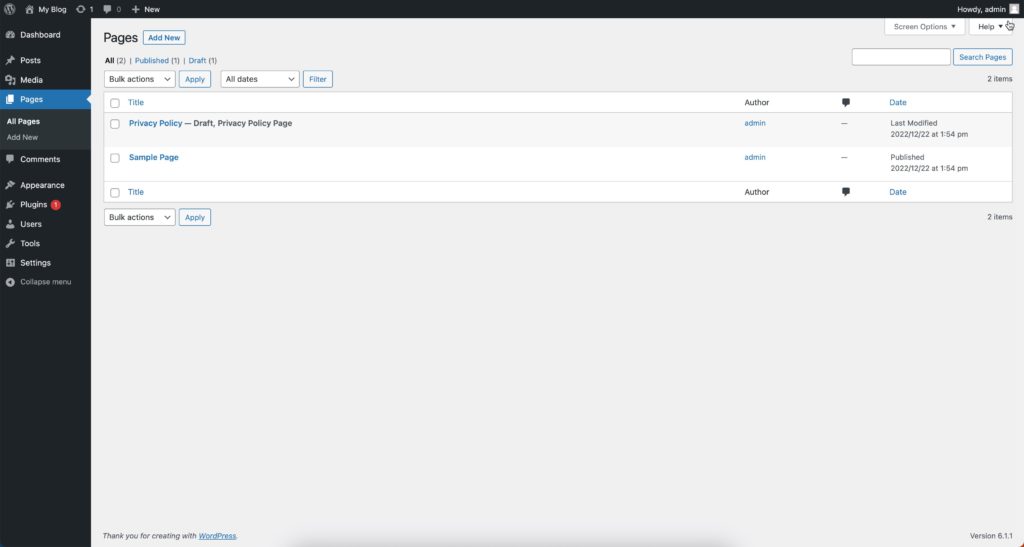
By the way: You can access the WordPress dashboard by appending /wp-admin/ to the end of your domain. It will look like this: www.ihre-domain.com/wp-admin/
3 Problems When Setting Up WordPress
Nothing is more frustrating than when our website doesn’t work the way it should—even though we seem to have set everything up correctly. That’s why we’ve prepared a quick troubleshooting guide for you here:
Troubleshooting 1: Error establishing a database connection
In nearly 90 percent of cases, the information in the database—specifically in the “wp-config.php” file—has been entered incorrectly. Here, you need to verify that the name, password, and username in your database actually match the information in the admin panel.
Troubleshooting 2: “The website is unavailable”
Even if you see error messages like “The website is not accessible” or “Server not found,” it’s not necessarily a problem. It can often take up to 24 hours for a newly launched website to become accessible. Just try again later. If it still doesn’t work, contact your hosting provider.
Troubleshoot 3: “Forbidden”
If the error message “Forbidden – You don’t have permission to access / on this server” appears, there are four possible causes for the error:
- You copied the WordPress files along with the “wordpress” folder to your server.
- The WordPress files were copied to the wrong directory.
- Your domain is assigned to a different directory.
- There is an error on your hosting provider’s end.
In the first three cases, you can use FileZilla to drag and drop the files to the correct locations and/or change the domain’s directory in the control panel.
Conclusion: We at Waterproof can help you set up WordPress
With this WordPress guide, you can now set up WordPress. But maybe you need professional help setting up WordPress? Then we’d be happy to assist you. As a web agency, in addition to setting up WordPress, we specialize primarily in the following areas:
- Search Engine Optimization – SEO
- Local SEO
- Technical SEO
- SEO Audit
- Google Ads / PPC
To provide a comprehensive marketing solution, we’ll work with you to develop a customized plan so you’re always one step ahead of your competitors. At the same time, we’ll help you create the right online marketing campaigns for your business. Feel free to check out our customer reviews! You can reach us by phone at +49 751 95899217 or contact us via our contact form.